What is RiskXchange Trust Page?
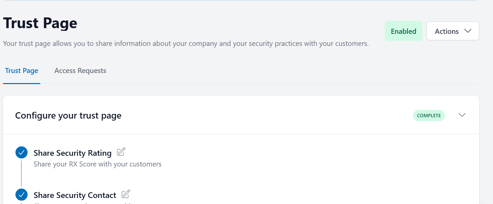
Your Trust Page allows you to share information about your company and your security practices with your customers. It is a simple and secure way to publish information about your security posture and compliance and share it with your prospects and customers.
Completing your Trust Page builds trust and shows that your organization is taking cybersecurity seriously. You’ll spend less time filling out security questionnaires and fielding requests for security policies and compliance documentation.
You can invite anyone to view your Trust Page, configure access and NDA settings to ensure appropriate protections, and set a custom domain for it.
The design of the Trust Page widget has been updated to display a list of cards instead of a table.
What can you share on your Trust Page?
You can share the following information on your Trust Page:
- Security Ratings: Security ratings evaluate the external security posture of your publicly accessible assets. Including your security rating highlights your security posture.
- Security Contact: Share contact information for your security representative, such as your Chief Information Security Officer (CISO) or Chief Technology Officer (CTO).
- Company Description, Logo, and Cover Image: Customize your Trust Page to represent your company by adding a logo, cover image, and a short description to help users understand the service your company provides.
- Compliance Badges: Select the compliance badges you want to display.
- Security Questionnaires: Save completed security questionnaires to your Trust Page.
- Security Documentation: You can also provide other documentation, such as compliance certifications (for example: PCI DSS, SOC 2, ISO 27001) and business-specific materials. Providing this information through your Trust Page in RiskXchange ensures that your partners have the materials necessary to move forward with you.
- Privacy and Security Pages: Add links to related pages, such as your privacy policy or sub-processors page.
Editing and Publishing your Trust Page
To edit and publish your Trust Page, navigate to Dashboard > Trust Page.
Note: If you cannot see the Trust Page in the navigation, you may not have the required user permissions. Contact your organization's admin user to change these permissions.
Follow our guide on how to publish your Trust Page to prepare it for publication. You can add security questionnaires, compliance certifications, and business-specific materials like public trust and security pages.
How to Publish your Trust Page
Complete your Trust Page
- Share Security Rating: Share your RX Score with your customers.
- Share Security Contact: Share your security contact with your customers.
- Share Company Details: Share your company details with your customers (About and Privacy Policy).
- Share Security Standards: Share your security standards and compliance certifications with your customers.
- Share Security Questionnaires: Share any completed security questionnaires with your customers.
- Enable Your Trust Page: Enable your trust page so your customers can view it.
- Share Your Trust Page: Get the link to your trust page so that you can share it with your customers.
Non-Disclosure Agreement (NDA) and Access Requests
The Trust Page allows you to securely share documents and questionnaires while maintaining complete control over who can access them. You can configure NDAs (Non-Disclosure Agreements) and manage Access Requests to ensure your information remains private and protected.
Non-Disclosure Agreements (NDA)
- NDAs can now be configured directly in the Trust Page.
- You can set an NDA requirement for accessing shared content.
- NDAs can be configured via the Actions dropdown.
- Optionally, NDAs can be required by default for all access requests.
- When enabled, users will be prompted to sign the NDA before accessing the content.
This ensures your sensitive information is only shared with approved users who have agreed to your terms.
Access Requests
With Access Requests, you have complete control over how external users interact with your Trust Page.
How it works
- Request Access
- External users can request access from any enabled Public Trust Page.
- Access protection ensures users must log in and request permission before viewing content.
- Manage Requests
- Platform users can approve or deny requests.
- You can also specify whether the requester must sign an NDA before gaining access.
- Access Approval
- Once approved, the requester receives an email with a special link to access the content.
- If an NDA is required, they will be prompted to sign it before proceeding.
- Accessing Content
- Once unlocked, links to documents and questionnaires become available.
- Documents can be downloaded.
- Questionnaires are displayed in a dialog window.
- Access Duration and Control
- Access links are valid for 30 days.
- Platform users can revoke access at any time.