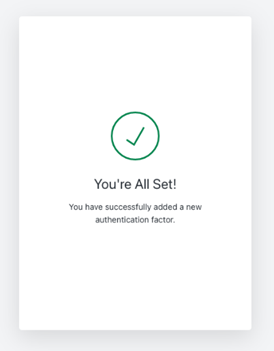
RiskXchange has turned on Multifactor Authentication (MFA) as the default authentication method.
How it works
Sign in to your RiskXchange account
- Enter your username & password and click continue.
- To confirm your identity, you will also then be asked for something else. You will need to enter a one-time password from your authenticator app into the one-time code box and click continue.
How it protects you and your company
An extra layer of security
Most people only have one layer – their password – to protect their account. With MFA, if a bad guy hacks through your password layer, he'll still need your phone to retrieve the code from your authenticator app.
Step 1
Before you can setup 2FA you will need to download and install an authentication app. RiskXchange will work with most One Time Password (OTP) apps, but here are a few suggestions:
Authy Authenticator App
Google Authenticator App
Microsoft Authenticator App
Step 2
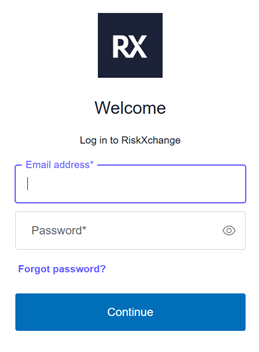
Enter your Email and Password.
Step 3
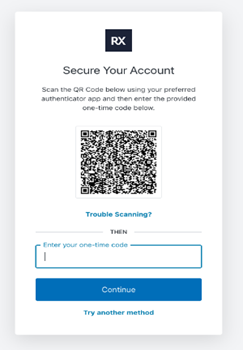
You will be asked to scan the QR code into your preferred Authenticator app and enter the one-time code it provides into the box below the QR code.
Step 4
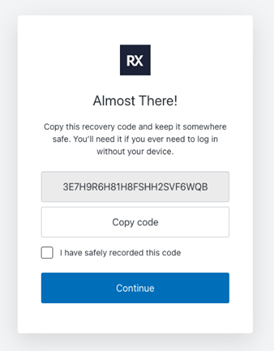
Almost there! You should now copy the recovery code and store this somewhere safe as you may need it if you lose access to your Authenticator app e.g. lose your phone.
Step 5
That is you, all done! Now close the browser window you are in and login at https://app.riskxchange.co with your username, password and one-time password provided by your preferred authenticator app. Any problems, please contact us by email hello@riskxchange.co